1)
Debugging farm solutions (applies to MOSS 2007 /
SharePoint 2010)
a.
Using user-interface
i.
Go to Internet Information Services 7.0 (Run->inetmgr)
ii.
Single click machine name in the left side of
the tree view
 |
| InetMgr |
iii.
Double click “Worker Processes” in the IIS
Section in Features view as shown below.
 |
| Worker processes |
iv.
Identify the ProcessID corresponding to your web
application application pool
v.
Attach the process with the process id
identified in the above step in the visual studio
b.
Using command line
i.
Open Run->Cmd
ii.
Type Appcmd –list wp
1.
This command will list the worker processes
present running in the current machine
2.
Identify the ProcessID corresponding to your web
application application pool
3.
Attach the process with the process id
identified in the above step in the visual studio
2)
Debugging Sandboxed solutions
a.
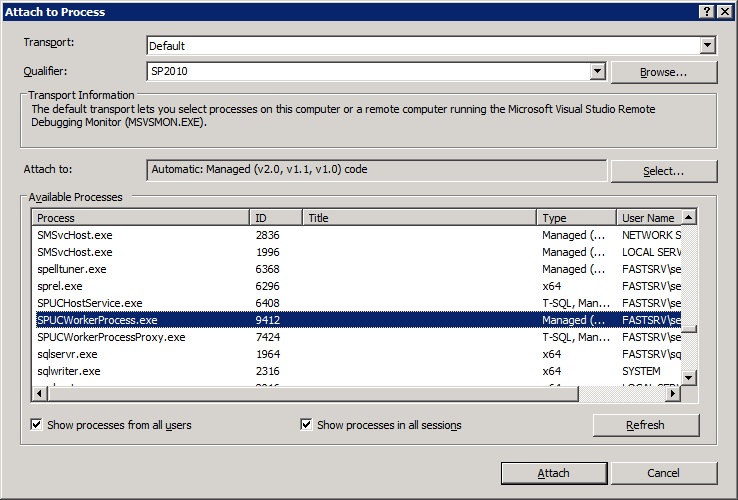
Pre-requisite : The SharePoint Sanboxed User code service is
started. You will see that the three process “SPUCHostService.exe”, “SPUSWorkerProcess.exe”
and “SPUCWorkerProcessProxy.exe” are running
b.
Attach the “SPUSWorkerProcess.exe”
process in the visual studio as shown below
3)
Debugging Full trust proxies or hybrid
solutions.
a.
You have to attach two processess
i.
one is the worker process corresponding to your
web application (W3WP.exe)
ii.
And the other is the corresponding “SPUCWorkerProcessProxy.exe”
process as shown below
4)
Debugging Timer Jobs
a.
You have to attach two processess
i.
one is the worker process corresponding to your
web application (W3WP.exe)
ii.
And the other is the corresponding “OWSTimer.exe”
process as shown below