Showing posts with label Debugging. Show all posts

Tuesday, July 23, 2013

Web site worker process has been terminated by IIS error

 Web site worker process has been terminated by IIS error

You receive the below error
" Web site worker process has been terminated by IIS with error message" while you are debugging the solutions


This is because of the default timeout setting which is 90 seconds for the corresponding worker process (w3sp.exe).

In order to debug for more time without any error message follow the below steps.

  1. Go to IIS Manager (Run-> inetmgr)
  2. Expand the leftside tree view and click on the Application Pools
  3. Select the corresponding application pool for the worker process you have attached in the visual studio while debugging
  4. Click on the “Advanced Settings” in the right side of the pane.
  5. Locate the Process Model section in the advanced settings dialog box
  6. Set Ping Enabled to False.
  7. Set Ping Maximum Response Time to a value that is larger than 90 seconds say 300 seconds.
  8. Setting the “Ping Enabled” to False stops the IIS from checking whether the worker process is still running and keeps the worker process alive until you have stopped debugging the process.
  9. Click OK 

Debugging SharePoint Web application in Visual Studio

1)      Debugging farm solutions (applies to MOSS 2007 / SharePoint 2010)

a.       Using user-interface
                                                               i.      Go to Internet Information Services 7.0 (Run->inetmgr)
                                                             ii.      Single click machine name in the left side of the tree view
InetMgr


                                                            iii.      Double click “Worker Processes” in the IIS Section in Features view as shown below.
Worker processes

                                                           iv.      Identify the ProcessID corresponding to your web application application pool
                                                             v.      Attach the process with the process id identified in the above step in the visual studio
b.      Using command line
                                                               i.      Open Run->Cmd
                                                             ii.      Type Appcmd –list wp
1.       This command will list the worker processes present running in the current machine
2.       Identify the ProcessID corresponding to your web application application pool
3.       Attach the process with the process id identified in the above step in the visual studio

2)      Debugging Sandboxed solutions

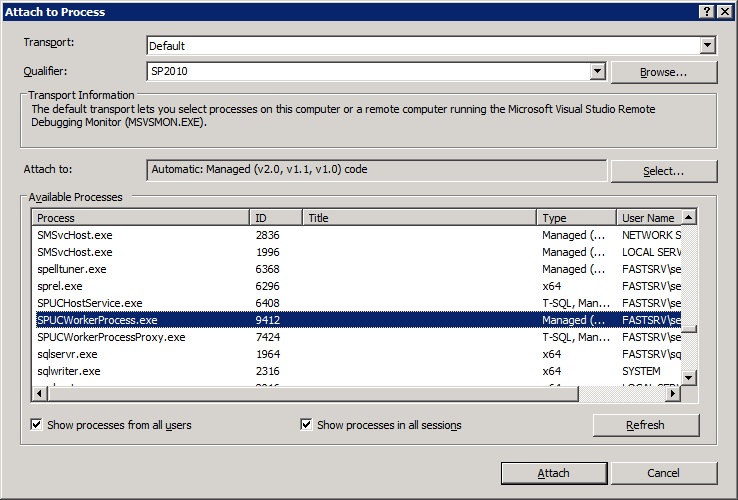
a.       Pre-requisite :  The SharePoint Sanboxed User code service is started. You will see that the three process “SPUCHostService.exe”, “SPUSWorkerProcess.exe” and “SPUCWorkerProcessProxy.exe” are running
b.      Attach the “SPUSWorkerProcess.exe” process in the visual studio as shown below

3)      Debugging Full trust proxies or hybrid solutions.

a.       You have to attach two processess
                                                               i.      one is the worker process corresponding to your web application (W3WP.exe)
                                                             ii.      And the other is the corresponding “SPUCWorkerProcessProxy.exe” process as shown below


4)      Debugging Timer Jobs

a.       You have to attach two processess
                                                               i.      one is the worker process corresponding to your web application (W3WP.exe)
                                                             ii.      And the other is the corresponding “OWSTimer.exe” process as shown below